LinkedIn Banner Size 2026: Exact Dimensions, Safe Zones, Templates
Your LinkedIn banner is the first piece of design a visitor sees on your profile or company page. Get the dimensions wrong and the image is cropped, blurry, or hidden behind your avatar on mobile. Get them right, and the banner becomes a 1,584 pixel ad for what you do, who you do it for, and why anyone should reply to your next message.
This guide gives you the exact LinkedIn banner size for 2026 (personal profile and company page), the file specs LinkedIn actually accepts, the safe zones that survive avatar overlap on desktop and mobile, ten ready-to-use banner ideas by persona, and the mistakes that quietly tank otherwise good designs.
TL;DR: LinkedIn banner dimensions 2026
- Personal profile cover photo: 1584 x 396 px, 4:1 ratio, JPG or PNG, 8 MB max.
- Company page cover image: 1128 x 191 px, roughly 6:1 ratio, JPG or PNG, 8 MB max.
- Showcase page cover: 1128 x 191 px (same as company pages).
- LinkedIn Live and Events cover: 1920 x 1080 px, 16:9.
- Avatar overlap: about 400 px wide, 100 px tall on desktop, larger relative footprint on mobile. Keep important text in the center and right.
- Safest export: 1584 x 396 px PNG for profiles, 1128 x 191 px PNG for company pages, sRGB color, under 3 MB.
LinkedIn personal profile banner size
The personal profile banner, sometimes called the cover photo, sits at the top of your profile above your name and headline.
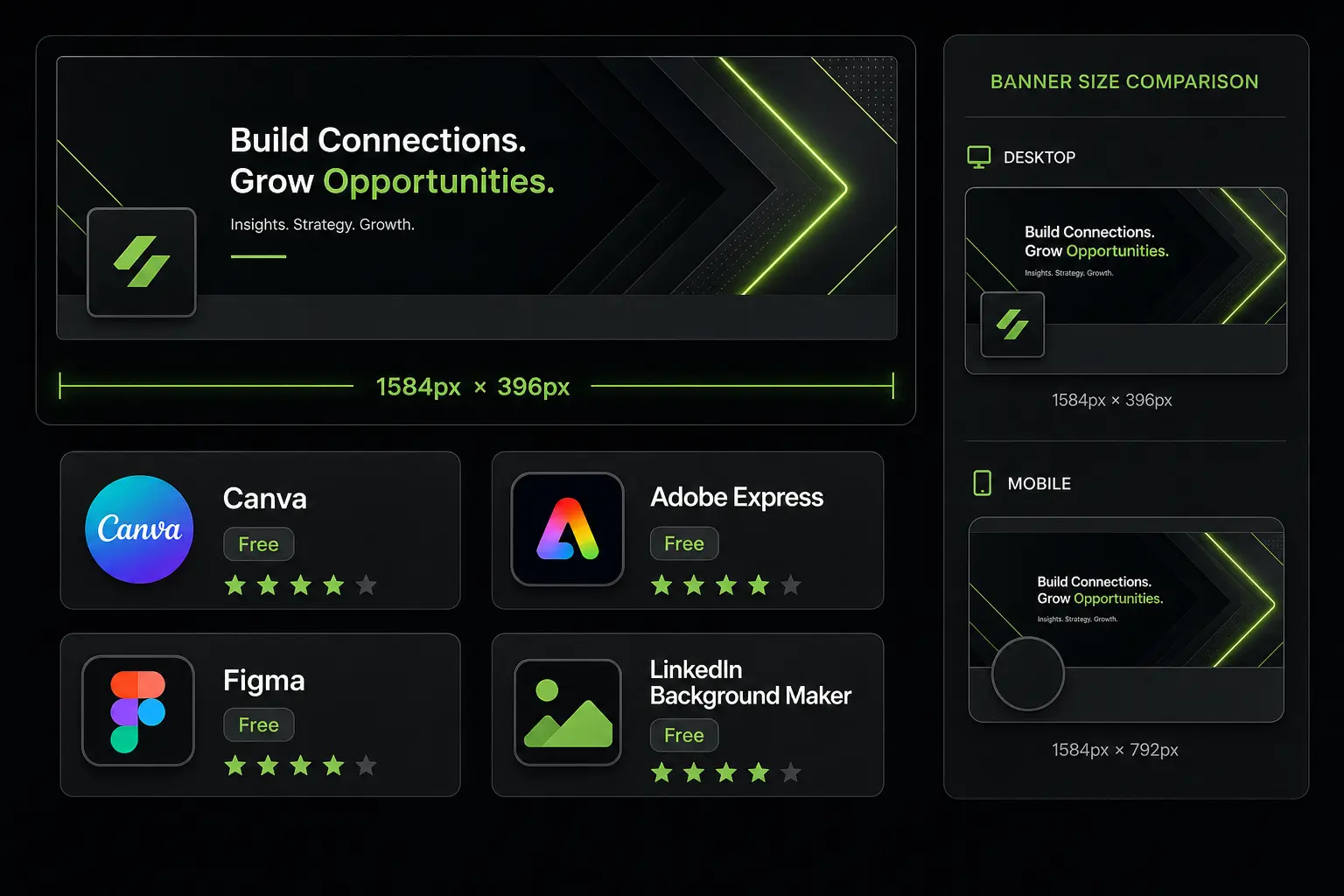
Recommended dimensions in 2026: 1584 x 396 pixels. That gives you a 4:1 aspect ratio, which LinkedIn has kept stable for several years.
LinkedIn accepts JPG, PNG, and static GIF up to 8 MB. Animated GIFs and SVGs are not supported as cover photos. Stick with PNG when your design includes text, logos, or solid color blocks. Use JPG when you upload a photographic image with gradients and many colors, since it compresses better at the same visual quality.
If you design at exactly 1584 x 396 px, your file will look sharp on standard screens. On Retina, 4K, and ultrawide monitors, LinkedIn upscales the image, so a doubled export at 3168 x 792 px will look crisper. The trade-off is file size. Anything over 3 MB starts to load slowly on mobile and is more likely to be re-compressed by LinkedIn, which softens text edges.
LinkedIn company page banner size
Company pages and Showcase pages use a wider, much shorter banner.
Recommended dimensions in 2026: 1128 x 191 pixels. That works out to roughly a 6:1 ratio, almost twice as flat as the personal profile banner. The same 8 MB limit and JPG/PNG formats apply.
The company logo overlaps the bottom-left corner of the cover, similar to how the avatar overlaps a personal banner, just smaller. On the LinkedIn Pages backend, the upload tool may suggest larger source files (4200 x 700 px is sometimes shown for newer Pages experiments) so the image stays sharp on bigger displays. The visible crop on a desktop browser, though, remains 1128 x 191 px. Design at the recommended size, export at double resolution if you want a safety margin, and keep the file under 3 MB to avoid heavy re-compression.
File format and file size: what LinkedIn actually accepts
| Asset | Dimensions | Ratio | Format | Max size |
|---|---|---|---|---|
| Personal profile cover | 1584 x 396 px | 4:1 | JPG or PNG | 8 MB |
| Company page cover | 1128 x 191 px | 6:1 | JPG or PNG | 8 MB |
| Showcase page cover | 1128 x 191 px | 6:1 | JPG or PNG | 8 MB |
| Live event cover | 1920 x 1080 px | 16:9 | JPG or PNG | 8 MB |
| Career page hero | 1128 x 376 px | 3:1 | JPG or PNG | 8 MB |
A few practical notes that matter more than the headline numbers:
- Color profile: stick with sRGB. CMYK files render with washed-out colors in browsers.
- Resolution: 72 DPI is standard for screens. Higher DPI does not improve quality, only file size.
- Animated formats: not supported on cover photos, even though they work in feed posts.
- Transparency: a transparent PNG will display on a white background on LinkedIn, which is rarely what you want. Bake your background color into the file before exporting.
Safe zones: where avatar overlap kills your design
The single biggest mistake on a LinkedIn banner is putting important content where the avatar or company logo will sit on top of it. The overlap is not a small detail. It is roughly a quarter of your usable canvas.
Personal profile, 1584 x 396 px
| Zone | Approximate coordinates | Status |
|---|---|---|
| Top edge | 0 to 50 px from top | Risky, may be cropped on mobile |
| Bottom edge | 0 to 50 px from bottom | Risky, may be cropped on mobile |
| Bottom left | 0 to 400 px wide, 100 to 396 px tall | Avoid, hidden by avatar on desktop |
| Center | 400 to 1184 px wide, 50 to 346 px tall | Main safe zone, always visible |
| Top right | 1184 to 1584 px wide, 0 to 100 px tall | Safe but off-center |
On mobile, the entire banner is roughly 400 px wide on a typical phone, and the avatar covers a larger relative footprint. Anything narrower than the center column on desktop can disappear completely on a phone. As a rule, design as if the entire bottom-left third is a no-go zone, and keep the headline message in the center, with optional supporting elements top-right.
Company page, 1128 x 191 px
| Zone | Approximate coordinates | Status |
|---|---|---|
| Top and bottom edges | 0 to 30 px | Risky on mobile |
| Bottom left | 0 to 300 px wide, 70 to 191 px tall | Hidden by company logo |
| Center and right | 300 to 1128 px wide, 30 to 160 px tall | Main safe zone |
Because the company banner is so much shorter (191 px), there is almost no room for vertical layering. Treat it as a single horizontal strip with one clear message and one secondary element.
How to upload a banner on LinkedIn
From desktop
- Go to your profile page and hover over the existing banner. Click the camera icon in the top-right corner.
- Choose “Add photo” or “Change photo” and select your file.
- LinkedIn opens an inline editor where you can adjust filters, brightness, contrast, and saturation, and slightly reposition the crop.
- Click “Apply” and then “Save”.
For a company page, navigate to “Admin view”, click the camera icon on the cover image, upload, and adjust the crop area.
From mobile
- Open the LinkedIn app and tap your avatar to view your profile.
- Tap your current banner area, then “Edit photo”.
- Choose a file from your phone library.
- Drag to reposition and tap “Save”.
The mobile editor offers fewer adjustment options than desktop. If your banner relies on precise alignment, design and upload from desktop, then check the result from your phone before deciding it is final.
Tools to design a LinkedIn banner
You do not need a designer or Photoshop license to ship a clean LinkedIn banner. Three tools cover almost every use case.
- Canva: pre-sized LinkedIn banner templates, drag-and-drop interface, free tier with most assets included. Best if you want to ship a banner in 20 minutes.
- Figma: more design control, multi-frame previews (one for personal, one for company), and free for individual users. Best if you want to iterate or maintain banners across a team.
- Adobe Express: a lighter Photoshop alternative with brand kits and AI-generated layouts. Useful if you already pay for Adobe Creative Cloud.
A few shortcuts that save real time:
- Start from a template that already has the safe zone marked. Canva and Figma community files often include semi-transparent overlays showing the avatar position.
- Export at 2x size if your tool offers it (3168 x 792 px for personal, 2256 x 382 px for company), then compress with a tool like TinyPNG before uploading.
- Build a single Figma master file with both the personal and company banner frames side by side. When your tagline changes, you update once and re-export both.
Eight banner ideas by persona
A LinkedIn banner is a tiny canvas, so it has to do one job. Here are battle-tested angles by persona.
1. SDR or Account Executive
Headline: who you sell to and what problem you solve. Example: “I help RevOps teams at Series B SaaS hit pipeline targets without growing the SDR team.” Add the logos of three or four customer companies in the right third. Keep the left clear for your avatar.
2. Founder or CEO
Headline: company name plus a one-line value proposition plus one credibility signal. Example: “Acme. The all-in-one prospecting platform. Series A, 200+ customers, Y Combinator W24.” Treat the banner as a mini landing page. If your prospect lands on your profile from a cold email, the banner should reinforce the pitch in three seconds.
3. Recruiter or talent partner
Headline: who you place and how to start a conversation. Example: “I place senior product engineers at well-funded scale-ups in NYC and remote. DM me for the open list.” Add a soft CTA in the right corner: “Open roles linked in featured section”.
4. Content creator
Headline: the topic, the audience, and the cadence. Example: “I write about B2B GTM. Three posts a week. 40k+ readers.” Use brand colors and a personal logo or wordmark. The banner becomes part of your show open every time someone clicks through from a post.
5. Freelancer or consultant
Headline: niche plus deliverable plus availability. Example: “Fractional Head of Marketing for B2B SaaS, $5M to $30M ARR. Booking projects for Q3.” Specificity sells. A generic “marketing consultant” banner converts worse than a niched one, even if you can do broader work.
6. RevOps leader
Headline: your scope and your operating philosophy. Example: “I build forecasting, pipeline hygiene, and territory design for sales teams of 20 to 200.” Add a row of integrations you specialize in (Salesforce, HubSpot, Outreach) as small logos in the right third.
7. Sales leader or VP Sales
Headline: your team, your numbers if shareable, and your hiring stance. Example: “VP Sales at Acme. 25 reps across EMEA. Hiring AEs in London and Paris.” Hiring intent on the banner attracts both candidates and partners who track team growth.
8. Marketing manager running ABM
Headline: the program and the audience. Example: “ABM for fintech. 80 named accounts, 12 deals influenced last quarter.” Banner becomes proof that you run a measurable program, which lifts both prospect trust and internal credibility.
How a sharp banner makes outbound work harder for you
Most B2B outbound goes through LinkedIn at some point. Either the prospect receives your invitation, accepts your connection, or clicks through from a cold email signature. Every one of those touches lands on your profile, and the first thing that loads is the banner.
A vague banner (“Senior Sales Professional, Driven and Passionate”) leaves the prospect to guess. A specific banner (“I help RevOps leaders at Series B SaaS hit pipeline targets”) confirms in three seconds that they are in the right place to reply. The reply rate difference is small per message and significant across a quarter.
If you run outbound at scale, a clean banner is the cheapest credibility signal you can ship. Combine it with a short, specific headline, a featured section that links to one or two case studies, and a recent post that backs up the claim, and your whole cold outreach machine starts working harder.
Make the rest of your prospecting work as hard as your banner
A polished LinkedIn profile is the easy part. Pulling verified contact data, sending personalized sequences, and keeping the CRM clean is the rest of the job. Zeliq’s Chrome extension lets you add prospects from LinkedIn in one click, with verified emails and direct dial numbers, then push them into a multichannel sequence without leaving the tab. See how the LinkedIn extension works.
Five mistakes that quietly tank LinkedIn banners
Mistake 1: text too small to read on mobile. On a phone, the banner is roughly 400 px wide. A 24 px headline in your design tool becomes a tiny smudge on a screen. Use 60 to 100 px for the main line, even if it looks oversized in your editor.
Mistake 2: text or logo trapped under the avatar. This is the most common error and the easiest to fix. Move anything important out of the bottom-left quadrant. If your design pulls the eye there, redesign rather than try to work around it.
Mistake 3: low-resolution source files. Uploading an 800 x 200 px image and letting LinkedIn upscale it produces a blurry, soft-edged result. Always design at the recommended size or larger.
Mistake 4: white background that blends into the LinkedIn UI. A pure white banner can look like a missing image on light themes. Add a soft gradient, a subtle pattern, or a brand color to anchor the design.
Mistake 5: too many messages in one banner. Five logos, three taglines, an avatar, a slogan, and a hashtag is not a banner, it is a billboard collision. One headline, one supporting element, one logo or accent. That is the whole budget.
Frequently asked points (absorbed into the flow)
What size should a LinkedIn banner be in 2026? Personal profile banners use 1584 x 396 px (4:1). Company page banners use 1128 x 191 px (6:1). Both accept JPG and PNG up to 8 MB.
What is the best file format for a LinkedIn banner? PNG when your design has text, logos, or solid colors. JPG for photographic images with gradients. Skip GIF and SVG since neither animates and SVG is not accepted at all on cover photos.
Why does my LinkedIn banner look blurry on mobile? Either the source file was too small, the file was over 3 MB and got re-compressed by LinkedIn, or the export was in CMYK rather than sRGB. Re-export at the recommended size, under 3 MB, in sRGB.
How do I avoid the avatar covering my banner text? Design as if the bottom-left 400 x 100 px area on a personal profile (or 300 x 70 px area on a company page) is a no-go zone. Place the headline message in the center or center-right.
Can I use a video as a LinkedIn banner? Not on the cover photo. LinkedIn supports video in feed posts, profile videos for Premium users, and Live events, but the static banner accepts only JPG, PNG, and non-animated GIF.
Banner refresh checklist before you publish
Run through this checklist before uploading. It takes two minutes and catches almost every common error.
- Exact dimensions: 1584 x 396 px for personal, 1128 x 191 px for company.
- Format: PNG for text-heavy designs, JPG for photographic ones.
- File size under 3 MB.
- sRGB color profile.
- Headline message inside the center safe zone.
- Nothing important in the bottom-left avatar area.
- Headline text at 60 px or larger so it survives mobile.
- Brand colors and typography consistent with your other touchpoints (website, email signature, slide template).
- Preview on desktop in an incognito window and on your phone before deciding it is final.
- One main message, one supporting element, no clutter.
Wrap up: turn the banner into an asset, not a placeholder
A LinkedIn banner is small real estate, but every prospect who lands on your profile from a cold email, an invitation, or a content post sees it before anything else. Treat it like the headline of a landing page: one specific promise, one credibility signal, one safe layout that survives both the avatar overlap and the mobile crop.
Refresh it every quarter when your offer, role, or focus changes. Keep the source file in Figma or Canva so you can ship a new version in fifteen minutes. And once your banner is doing its job, make sure the rest of your LinkedIn prospecting workflow is just as tight. Try Zeliq for free and turn every LinkedIn profile you visit into a verified contact, a personalized sequence, and a tracked reply. Built for business developers and founders who want one tool instead of five.
Enter the future of lead gen