
How to Find Someone’s Email on LinkedIn (5 Methods That Actually Work)
LinkedIn has over one billion members. It’s the largest professional database on the planet. And yet, when you land on a prospect’s profile ready to reach out, you’re often met with the same frustrating wall: no email address in sight, just a “Connect” button and a message request you know will never be read.
If you work in sales, business development, or outreach, you’ve been there. You’ve found the perfect contact. Their title is right, their company is right, their recent posts suggest they’re actively thinking about the problem you solve. And then… nothing. No way to reach them directly.
This guide breaks down exactly how to find someone’s email on LinkedIn in 2026, covering every method from the built-in features you might be overlooking to the tools that make the whole process systematic and scalable. Whether you’re an SDR running high-volume sequences, an AE trying to multi-thread into an account, or a founder doing your own outbound, these methods will help you move faster.
Why Email Still Beats LinkedIn InMail for Cold Outreach
Before jumping into the how, it’s worth understanding the why. LinkedIn InMail has its place, but for most cold outreach scenarios, email delivers better results:
- Open rates for cold email average 30-50% when properly targeted and deliverability is healthy
- InMail response rates hover around 10-15% on average, even with Premium
- Email lets you run automated sequences across multiple touches, channels, and personas
- You’re not competing with LinkedIn’s own notifications for attention in the inbox
- Email threads persist in a way that LinkedIn conversations often don’t once someone changes jobs
That said, the best outreach strategies combine both: email for the primary sequence, LinkedIn for warm-up touches, connection requests, and follow-ups. But to run that playbook, you need the email first.
Method 1: Check the LinkedIn Profile Contact Info Section
This sounds obvious, but it’s skipped more often than you’d think. LinkedIn lets members add an email address directly to their profile, and many people do, especially founders, freelancers, and senior executives who want to be reachable.
Here’s where to look:
- Go to the prospect’s LinkedIn profile
- Click “Contact info” (it’s a small link just below their name and headline, on the desktop version)
- A popup appears showing any information they’ve chosen to make visible: email, website, Twitter/X, phone number
The catch: what you see depends on your connection level. First-degree connections typically see more. Second and third-degree connections often see nothing at all, or just a website URL.
Pro tip: Even if no email shows up, check the website link. It usually leads to their company site. That’s your next clue.
Method 2: Identify the Company Email Domain
If the Contact Info section comes up empty, your next move is to figure out the company’s email format. This is a detective approach that works surprisingly well when you know what you’re doing.
Step 1: Find the company domain
This is usually straightforward. The prospect’s company appears on their profile. Go to the company’s website (often linked from the company page on LinkedIn) and note the domain, for example acmecorp.com.
Step 2: Find the email format
Companies typically use one of a handful of patterns:
- firstname@domain.com
- firstname.lastname@domain.com
- f.lastname@domain.com
- flastname@domain.com
- firstname_lastname@domain.com
To figure out which format a company uses, try these approaches:
- Search Google for "@acmecorp.com" and see what email addresses surface in press releases, event pages, or GitHub profiles
- Check Hunter.io’s free domain search (limited searches per month) which shows you formats found for a domain
- Look at the company’s email footers if you can find any press contacts or support email addresses
Step 3: Construct the email
Once you know the pattern, apply it to your prospect’s name. John Smith at acmecorp.com becomes john.smith@acmecorp.com or jsmith@acmecorp.com depending on the format.
This method requires verification before you send anything (more on that below), because a constructed email is a hypothesis, not a confirmed address.
Method 3: Use LinkedIn Sales Navigator (If You Have It)
LinkedIn Sales Navigator is a paid tool, but it unlocks information that the free version hides. For email specifically, Sales Navigator won’t directly give you a personal email address, but it does:
- Show you more contact details for some profiles
- Unlock TeamLink to surface warm introduction paths
- Let you export prospect data (which can then be enriched via third-party tools)
- Reveal company-level contact data that narrows your search
If your company has a Sales Navigator Team license, you can also access the CRM integrations that sync prospect data directly into Salesforce or HubSpot, making enrichment workflows much smoother.
Important: Sales Navigator is valuable for identifying and organizing prospects, but it’s not primarily an email-finding tool. You’ll still need one of the other methods here to get the actual email address.
Method 4: Use an Email Finder Tool or LinkedIn Extension
This is where the real efficiency gains are. Manual methods work, but they’re slow. If you’re prospecting at any meaningful volume, you need a tool that can find and verify emails directly from LinkedIn profiles without making you switch tabs every two minutes.
How these tools work:
Email finder tools use a combination of:
- Pattern matching against known email formats for that domain
- Database lookups against emails they’ve already confirmed
- Real-time SMTP verification to check whether an address is live
- Public data signals from websites, directories, and professional databases
What to look for in an email finder:
- Verification included (not just finding, but confirming the email is valid)
- LinkedIn integration so you can enrich directly from a profile page
- Bulk processing for list-level enrichment, not just one-off searches
- GDPR compliance with data sourced from public professional contexts
- CRM sync to push enriched data directly into your workflow
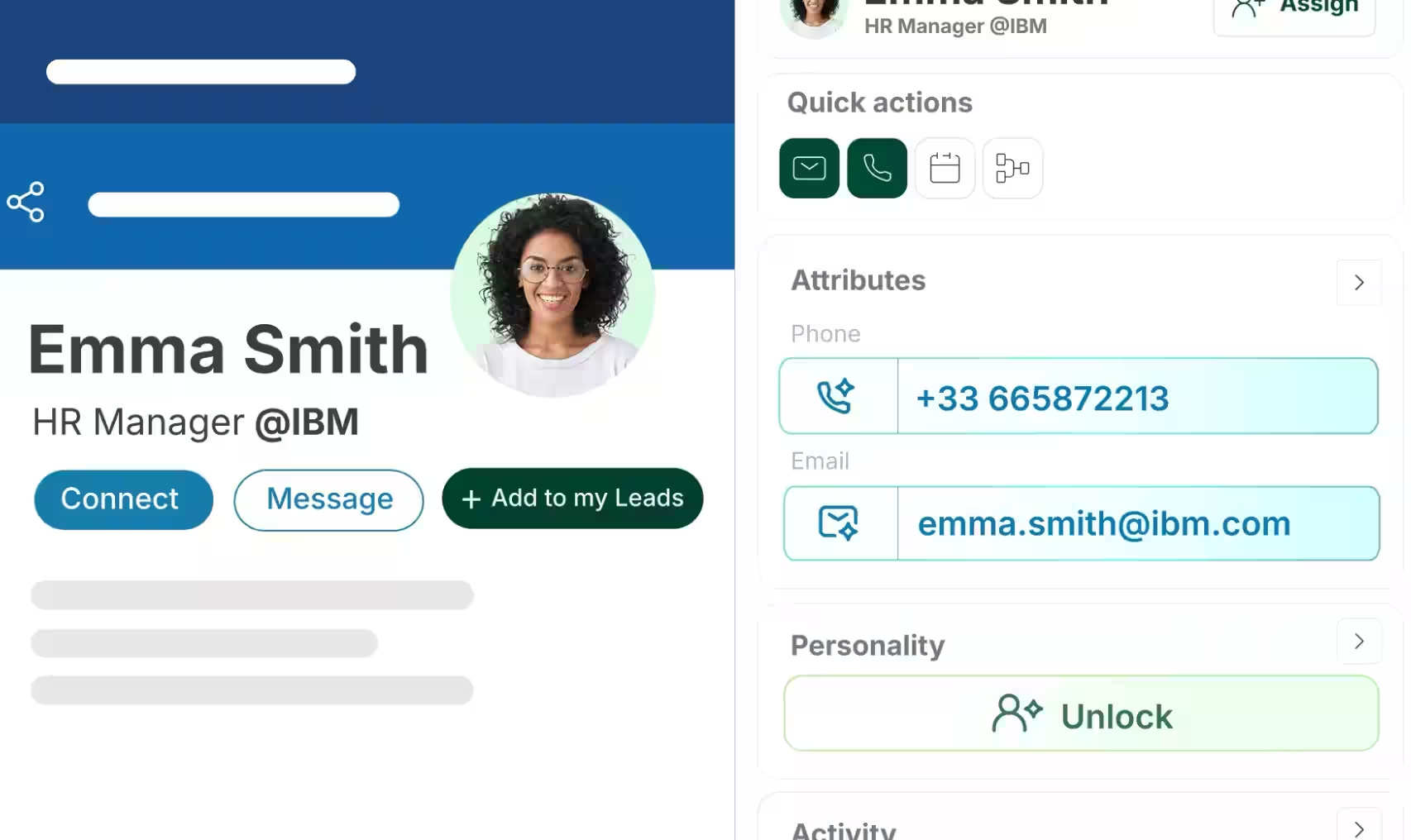
Zeliq’s browser extension does exactly this. Install it, navigate to any LinkedIn profile, and it pulls the verified email address, phone number, and other contact data in seconds, right from the profile page. No copy-pasting names into separate tools, no tab-switching, no manual verification.
The extension works as part of Zeliq’s broader B2B contact data platform, which means the emails you find are backed by a database of verified professional contacts, not just pattern-matched guesses.
Method 5: Find Emails Through Mutual Connections or Community Activity
This is the social engineering method, and when used ethically, it works well in specific situations.
Mutual connections: If you share a first-degree connection with your target prospect, a warm introduction request often surfaces the prospect’s email naturally. You message the mutual contact, explain why you want to connect, and ask if they’d be comfortable making an intro. This approach has a much higher conversion rate than cold email because of the implicit endorsement.
Community activity: Many professionals leave email breadcrumbs across the internet:
- GitHub profiles often list email addresses
- Medium or Substack author pages sometimes include contact emails
- Event speaker pages frequently list emails for coordination purposes
- Conference agendas, podcast show notes, and webinar recordings sometimes display contact info
- Twitter/X bios and link-in-bio pages (Linktree, etc.) occasionally include direct email
A quick Google search combining the person’s full name, company, and “email” can surface any of these. Try: "John Smith" "Acme Corp" email site:linkedin.com OR site:github.com OR site:medium.com
Why Email Verification Is Non-Negotiable
Finding an email address is only half the job. Sending to unverified emails destroys your sender reputation, which in 2026 is more critical than ever with Gmail and Outlook’s aggressive filtering rules.
Here’s what happens when you send to bad emails:
- Bounces spike your bounce rate (keep it under 2% to stay out of spam)
- High bounce rates signal to ESPs that you’re a spammer, hurting deliverability for all your emails
- Your domain gets flagged, affecting even your transactional and internal emails
- IP blacklisting can take weeks to recover from
What verification checks:
- Syntax validation (is it a real email format?)
- Domain validation (does the MX record exist?)
- SMTP verification (does the mail server confirm the address exists?)
- Disposable email detection (is it a throwaway address?)
- Catch-all detection (does the domain accept all emails regardless of address, making verification uncertain?)
Zeliq’s B2B data enrichment runs verification at the point of discovery, so by the time an email lands in your sequence, it’s already been checked. That’s a fundamentally different (and better) workflow than finding emails and verifying them separately.
GDPR and Compliance: What You Need to Know
If you’re operating in Europe or reaching out to prospects in the EU, GDPR applies to your outreach. Here’s the short version of what matters for email prospecting:
What GDPR actually says about B2B email:
- B2B email prospecting is generally permitted under legitimate interest provisions, as long as the outreach is relevant to the recipient’s professional role
- You must provide an easy way to opt out in every email
- You must honor opt-outs immediately and not re-contact people who have unsubscribed
- You should only use data from sources that have a lawful basis for sharing it (no scraped personal Gmail addresses, for example)
- Document your legitimate interest assessment if you’re building prospect lists at scale
The practical implication: Stick to professional email addresses tied to business domains. Focus on contacts whose role is genuinely relevant to what you offer. Use tools that source data from public professional contexts rather than personal data harvested without consent.
Zeliq is built with compliance in mind, sourcing data from professional contexts and giving you the controls needed to manage opt-outs and consent at scale.
Putting It All Together: A Scalable Workflow for SDRs
Here’s how to combine these methods into a repeatable, efficient workflow that doesn’t eat your whole day:
Step 1: Build your target list
Use LinkedIn (or Sales Navigator) to identify prospects by title, company size, industry, and location. Export or save them into a working list.
Step 2: Enrich with Zeliq
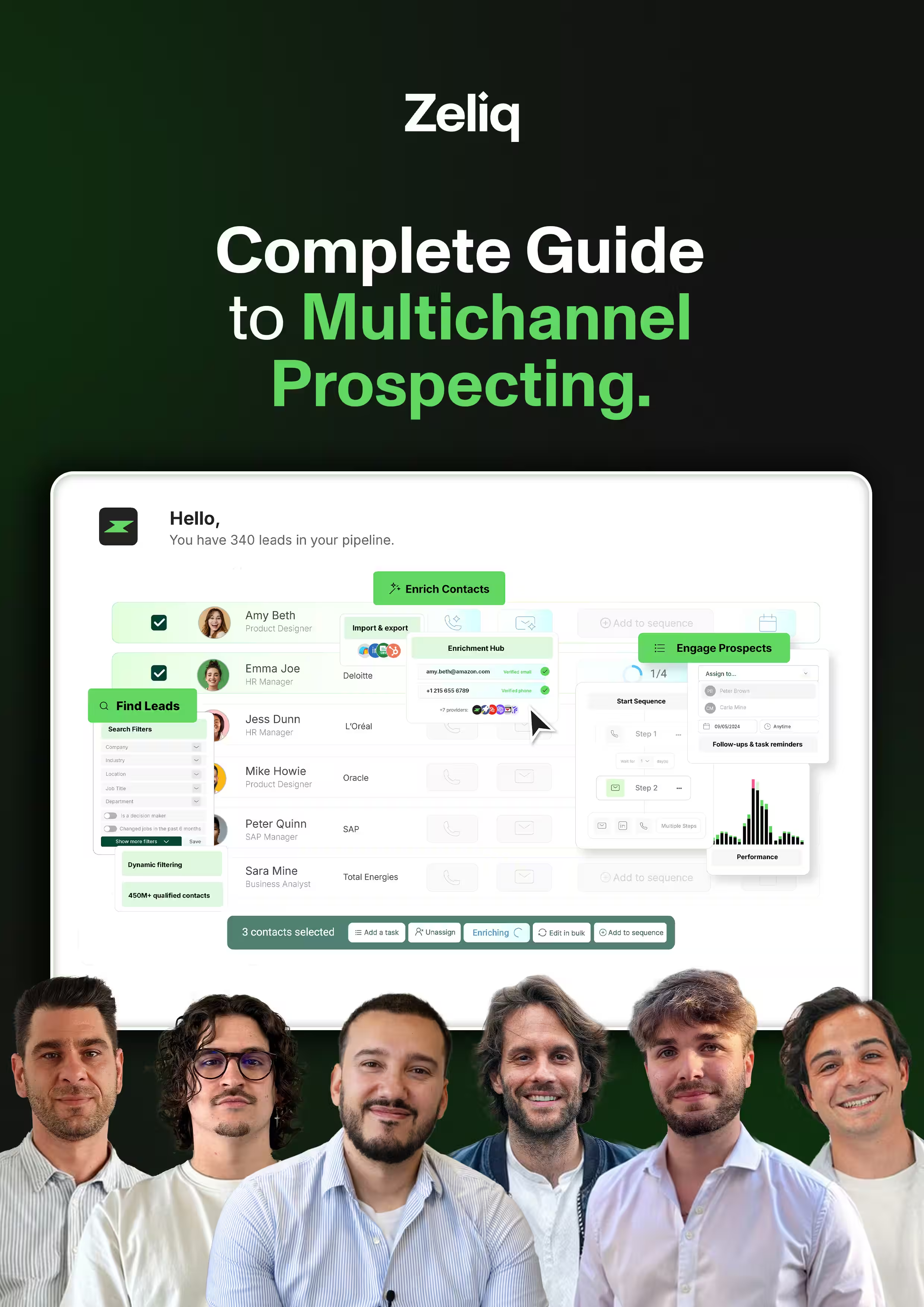
Install the Zeliq browser extension and enrich profiles as you browse, or upload your list to Zeliq for bulk enrichment. This surfaces verified emails, phone numbers, LinkedIn URLs, and company data in one pass.
Step 3: Verify before sending
Even with a good tool, run a final verification check on any list before it goes into a sequence. Most modern outreach platforms have this built in, or you can use a dedicated verification service.
Step 4: Launch multichannel sequences
Don’t rely on email alone. Use Zeliq’s multichannel prospecting to combine email, LinkedIn touchpoints, and calls into a coordinated sequence. Prospects who see you on multiple channels convert at significantly higher rates.
Step 5: Monitor and adjust
Track open rates, reply rates, bounce rates, and unsubscribes. Adjust your messaging, targeting, and sending frequency based on what the data tells you.
Common Mistakes to Avoid
Sending without verifying: Even one bad email batch can tank your deliverability for weeks. Always verify.
Over-relying on LinkedIn InMail: InMail is expensive and has lower reply rates. Use it strategically, not as your primary channel.
Ignoring the Contact Info section: It’s the simplest method and takes five seconds. Check it first.
Using personal email addresses: Emailing someone’s Gmail or personal Yahoo account for a cold B2B pitch is almost always a GDPR violation and will get your emails marked as spam fast.
Not personalizing at scale: Found the email? Great. Now make sure the message is relevant and specific enough to earn a reply. A verified email to a generic template is still a wasted opportunity.
The Bottom Line
Finding emails on LinkedIn doesn’t have to be a manual, frustrating process. Between LinkedIn’s built-in contact info, company domain research, and purpose-built tools like Zeliq, you can build a workflow that consistently surfaces verified, GDPR-compliant contact data without slowing down your pipeline.
The SDRs who outperform their peers aren’t finding magic messaging formulas. They’re reaching the right people, through the right channels, with verified contact data that actually reaches the inbox. That starts with having the email in the first place.
Find verified emails from any LinkedIn profile in seconds. Zeliq’s browser extension enriches your prospects instantly, no tab-switching required.
Try Zeliq for free